
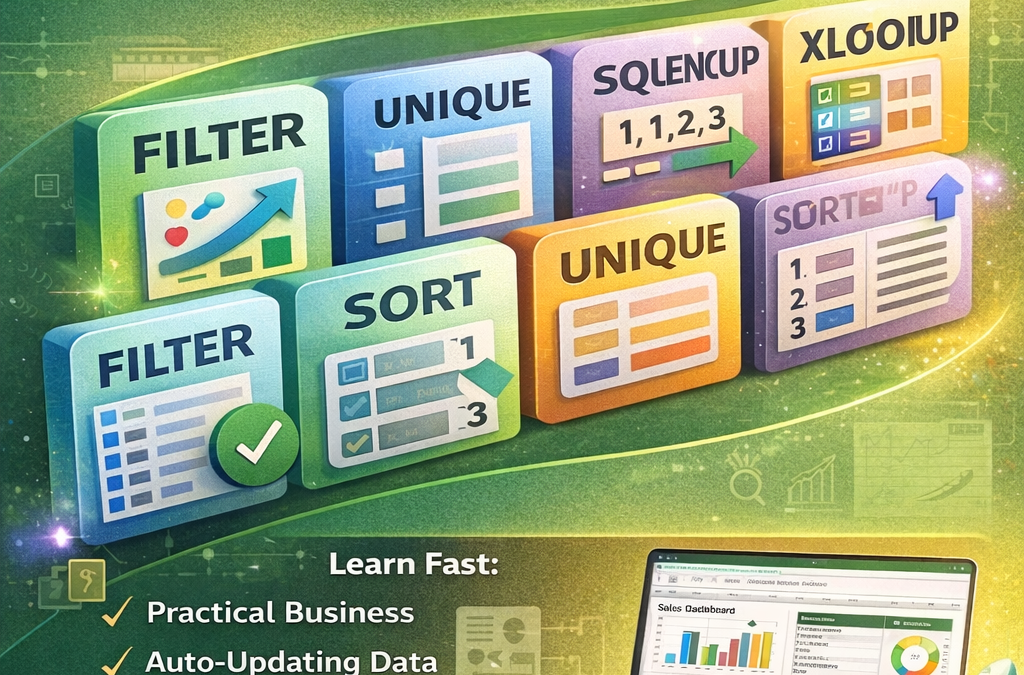
Best Dynamic Array Functions You Must Learn (Modern Excel)
Excel has changed dramatically in recent years. With the introduction of Dynamic Array functions, Microsoft Excel became more powerful, faster, and easier to use.
If you’re still using traditional formulas like complex helper columns and manual drag-down formulas, you’re missing out.

Excel dynamic array functions
In this guide, you’ll learn the best dynamic array functions in modern Excel and how they can transform your workflow.
If you want ready-made practical examples, you can also explore 10,000+ professional Excel templates at 👉 www.readyexcelfiles.com
What Are Dynamic Array Functions?
Dynamic Array functions automatically return multiple results into multiple cells from a single formula.
Instead of:
Copying formulas down manually
Using Ctrl + Shift + Enter
Creating extra helper columns
You write one formula — and Excel “spills” the results automatically.
This is called the spill range.
1️⃣ FILTER – Extract Data Instantly
The FILTER function allows you to extract specific rows based on conditions.
Example:
=FILTER(A2:D100, C2:C100=”Approved”)
This instantly returns all rows where the status is “Approved”.
Why It’s Powerful:
No need for advanced filter tool
Automatically updates when data changes
Perfect for dashboards and reports
If you work with sales reports, HR data, or inventory sheets, FILTER will save hours.
2️⃣ SORT – Auto Sort Without Touching Data
SORT organizes your data dynamically.
Example:
=SORT(A2:D100, 2, -1)
This sorts by the second column in descending order.
Why Use SORT?
Keeps original data unchanged
Updates automatically
Great for ranking lists
Perfect for top-performing sales reports and leaderboard dashboards.
3️⃣ SORTBY – Advanced Smart Sorting
SORTBY allows sorting based on another column.
Example:
=SORTBY(A2:D100, C2:C100, -1)
This sorts data based on values in column C.
Why It’s Better:
More flexible than SORT
Works well for financial models
Ideal for performance analysis
4️⃣ UNIQUE – Remove Duplicates Automatically
UNIQUE extracts distinct values from a list.
Example:
=UNIQUE(A2:A100)
This creates a list of unique entries.
Business Use:
Unique customer lists
Unique product names
Unique regions
Combine UNIQUE with FILTER for powerful reporting systems.
5️⃣ SEQUENCE – Generate Number Series Instantly
SEQUENCE creates automatic number lists.
Example:
=SEQUENCE(10,1,1,1)
This generates numbers from 1 to 10.
Why It’s Useful:
Create invoice numbers
Date sequences
Serial IDs
Calendar templates
6️⃣ XLOOKUP – The Modern Replacement for VLOOKUP
Although not strictly a dynamic array function, XLOOKUP works perfectly with them.
Example:
=XLOOKUP(A2, A10:A100, B10:B100)
Benefits:
No column index problem
Works left to right
Handles errors better
Modern Excel users should switch to XLOOKUP immediately.
7️⃣ TAKE, DROP & CHOOSECOLS – Advanced Data Control
These newer functions allow slicing data easily.
TAKE Example:
=TAKE(A2:D100, 5)
Returns the first 5 rows.
DROP Example:
=DROP(A2:D100, 5)
Removes first 5 rows.
CHOOSECOLS Example:
=CHOOSECOLS(A2:D100,1,3)
Returns selected columns only.
These are extremely powerful for building professional dashboards.
Why Dynamic Arrays Are Game-Changing
✔ No more manual dragging
✔ Cleaner spreadsheets
✔ Fewer errors
✔ Faster reporting
✔ More professional dashboards
If you’re building business reports, salary sheets, dashboards, inventory systems, or financial trackers — dynamic arrays are essential.
Practical Business Example
Imagine you have:
5,000 sales records
Multiple regions
Multiple sales reps
Using:
FILTER
UNIQUE
SORTBY
You can build a live dashboard in minutes.
Instead of building from scratch, you can also download ready-made advanced Excel dashboards from 👉 www.readyexcelfiles.com
We offer:
10,000+ ready-to-use Excel templates
Business dashboards
HR & salary sheets
Accounting templates
Financial models
Reporting systems
Designed to save time and boost productivity.
Final Thoughts
Modern Excel is not just spreadsheets anymore — it’s a powerful data engine.
If you learn:
FILTER
UNIQUE
SORT
SORTBY
SEQUENCE
TAKE
DROP
CHOOSECOLS
You will instantly upgrade your Excel skills.
And if you prefer ready-made professional Excel systems, explore www.readyexcelfiles.com
and download 10,000+ editable Excel templates for your business.