
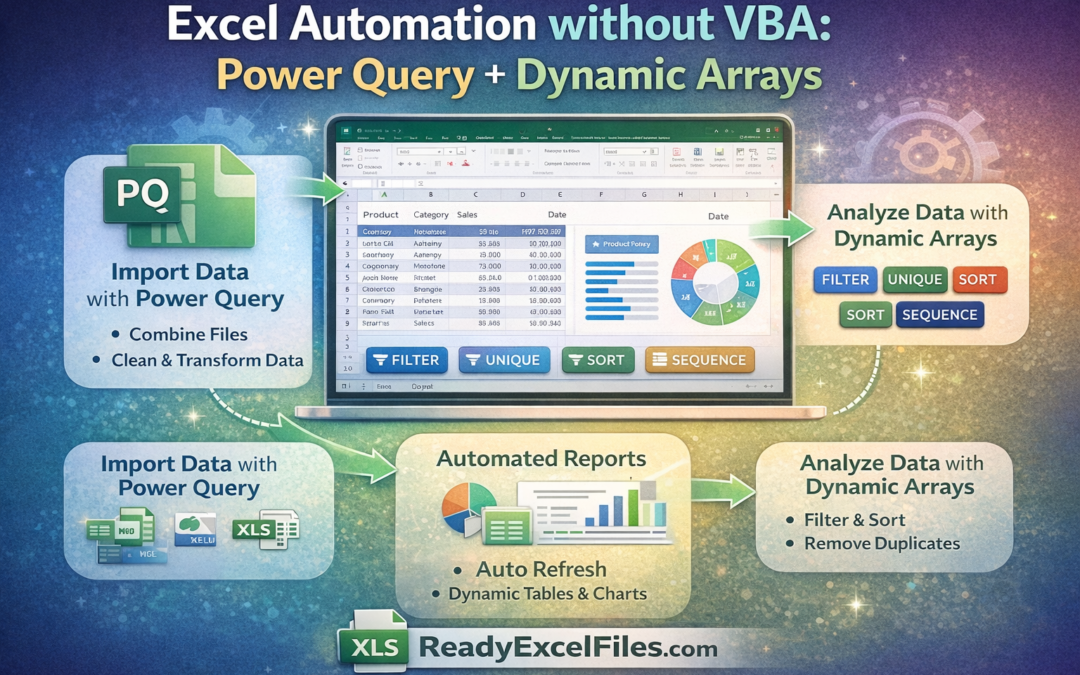
Excel Automation without VBA: Power Query + Dynamic Arrays
Many Excel users believe automation requires VBA macros or complex programming. But modern versions of Microsoft Excel offer powerful automation tools that work without writing a single line of VBA code.
Two of the most powerful tools are:
Excel automation without VBA
Power Query
Dynamic Array Functions
Together they allow businesses to clean data, transform datasets, and generate automated reports instantly.
In this guide from ReadyExcelFiles.com, we’ll show how you can automate Excel workflows using these modern features.
Why Avoid VBA for Automation?
While VBA is powerful, many users prefer solutions that are:
Easier to maintain
Compatible with modern Excel versions
Secure for corporate environments
Faster to update and modify
With Power Query and Dynamic Arrays, you can build fully automated spreadsheets without macros.
What is Power Query?
Power Query is a built-in Excel tool used for data extraction, transformation, and loading (ETL).
It allows you to:
Import data from multiple sources
Clean messy datasets
Merge and transform tables
Refresh reports automatically
Typical data sources include:
CSV files
Databases
Websites
Excel files
APIs
Example workflow:
Raw Data → Power Query Cleaning → Automated Table
Once the query is created, Excel can refresh the data automatically with one click.
What Are Dynamic Array Functions?
Dynamic arrays are modern Excel formulas that return multiple results from a single formula.
Some powerful functions include:
Function Purpose
FILTER Extract data based on conditions
SORT Sort datasets automatically
UNIQUE Remove duplicates
SEQUENCE Generate number sequences
LET Store variables in formulas
LAMBDA Create reusable functions
Example:
=FILTER(A2:D100, C2:C100=”Sales”)
This formula automatically returns all rows where the department equals Sales.
No copying formulas needed.
Automating Reports with Power Query + Dynamic Arrays
When combined, these tools create powerful automation.
Step 1: Import Data with Power Query
Example:
Import sales data from multiple Excel files
Combine them into one dataset
Clean and structure the data automatically
Power Query handles the heavy processing.
Step 2: Use Dynamic Arrays for Analysis
Once the data is loaded into Excel, dynamic formulas can analyze it.
Example:
=UNIQUE(B2:B1000)
This instantly creates a list of all unique product names.
Another example:
=SORT(FILTER(A2:D1000,D2:D1000>1000))
This returns sales records greater than 1000 and sorts them automatically.
Real Business Use Cases
Businesses are already using this approach to automate:
Sales Dashboards
Import sales files daily
Automatically update reports
Generate product summaries
Financial Reports
Consolidate multiple financial sheets
Clean inconsistent data
Produce monthly summaries
HR Reports
Import employee attendance logs
Automatically generate HR dashboards
Benefits of Excel Automation Without VBA
Using Power Query and Dynamic Arrays provides many advantages:
✔ No programming required
✔ Easier maintenance
✔ Faster calculations
✔ Cleaner workflows
✔ Automatic updates
Many companies are replacing macro-based spreadsheets with modern Excel automation techniques.
Ready-Made Excel Automation Templates
If you want to save time, you can start with ready-made automation templates.
At ReadyExcelFiles.com, you can download 10,000+ ready-to-use Excel templates (.XLS) designed for:
Business management
Accounting and finance
HR tracking
Sales reporting
Productivity tools
These templates help professionals automate work instantly without building spreadsheets from scratch.
Final Thoughts
Modern Excel has evolved far beyond traditional spreadsheets. By combining Power Query and Dynamic Array functions, you can build powerful automation systems without VBA or macros.
This approach is faster, cleaner, and more compatible with modern business environments.
If you want to work smarter with Excel, explore the ready-to-use Excel templates available on ReadyExcelFiles.com and start automating your work today.