
10 Short Excel Tips to Work Faster (Beginner → Pro)
Excel is all about speed and accuracy. These 10 tips will help you save time, reduce mistakes, and look more professional.
10 Short Excel Tips to Work Faster
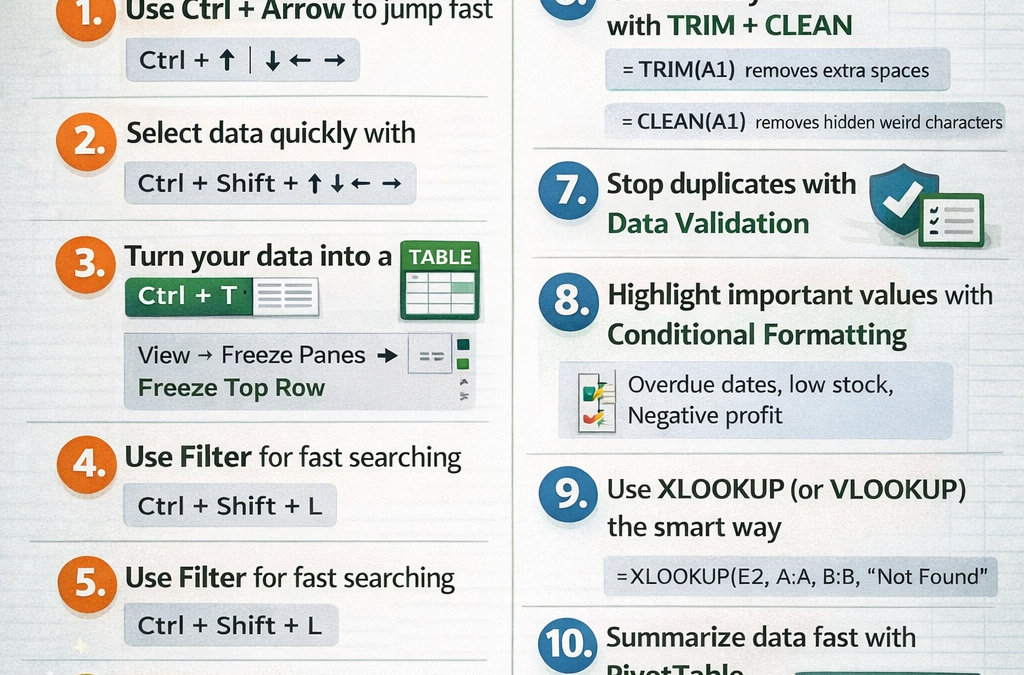
1) Use Ctrl + Arrow to jump fast
Press Ctrl + ↑ ↓ ← → to jump to the edge of your data instantly.
2) Select data quickly with Ctrl + Shift + Arrow
This highlights a full range in one move—perfect for big tables.
3) Turn your data into a Table (Ctrl + T)
Tables auto-expand, keep formatting, and make formulas easier to read.
4) Freeze headers so you don’t lose track
Go to View → Freeze Panes → Freeze Top Row for long sheets.
5) Use Filter for fast searching
Press Ctrl + Shift + L to turn filters on/off quickly.
6) Clean messy text with TRIM + CLEAN
=TRIM(A1) removes extra spaces
=CLEAN(A1) removes hidden weird characters
7) Stop duplicates with Data Validation
Use Data → Data Validation to block wrong entries (like duplicate IDs).
8) Highlight important values with Conditional Formatting
Example: highlight overdue dates, low stock, or negative profit automatically.
9) Use XLOOKUP (or VLOOKUP) the smart way
Best choice: XLOOKUP (more flexible than VLOOKUP).
Example: =XLOOKUP(E2, A:A, B:B, “Not Found”)
10) Summarize data fast with a PivotTable
Select data → Insert → PivotTable → drag fields.
Instant totals, counts, and reports—no heavy formulas.