
Excel Ranges (2026 Updated Guide): Master Cells, Named Ranges & Dynamic Ranges Fast
If you want to become faster in Excel, you must understand one core concept: Ranges.
A “range” is simply a group of cells—like A1:A10 or A1:D20. But in real work, ranges control almost everything: formulas, charts, PivotTables, data validation lists, conditional formatting, dashboards, and reports.
This updated guide will help you understand ranges clearly and use them like a pro.
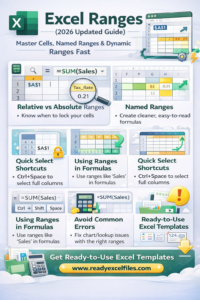
Excel Ranges (2026 Updated Guide)
What is an Excel Range?
An Excel range is any selection of cells.
Examples:
Single cell: B5
Column range: A:A
Row range: 3:3
Block range: A1:D10
Non-adjacent range: A1:A5, C1:C5 (selected using Ctrl)
Why Ranges Matter (Real Work Examples)
Ranges are used in:
Formulas: =SUM(B2:B20)
Charts: Chart data source ranges
PivotTables: Source data ranges
Drop-down lists: Data validation ranges
Conditional formatting: Apply rules to a range
Dashboards: Dynamic ranges that update automatically
1) Relative vs Absolute vs Mixed Ranges (Must Know)
This is the biggest “range skill” that separates beginners from confident Excel users.
Relative reference (changes when copied)
A1
If you copy a formula down or right, Excel adjusts it automatically.
Absolute reference (does NOT change)
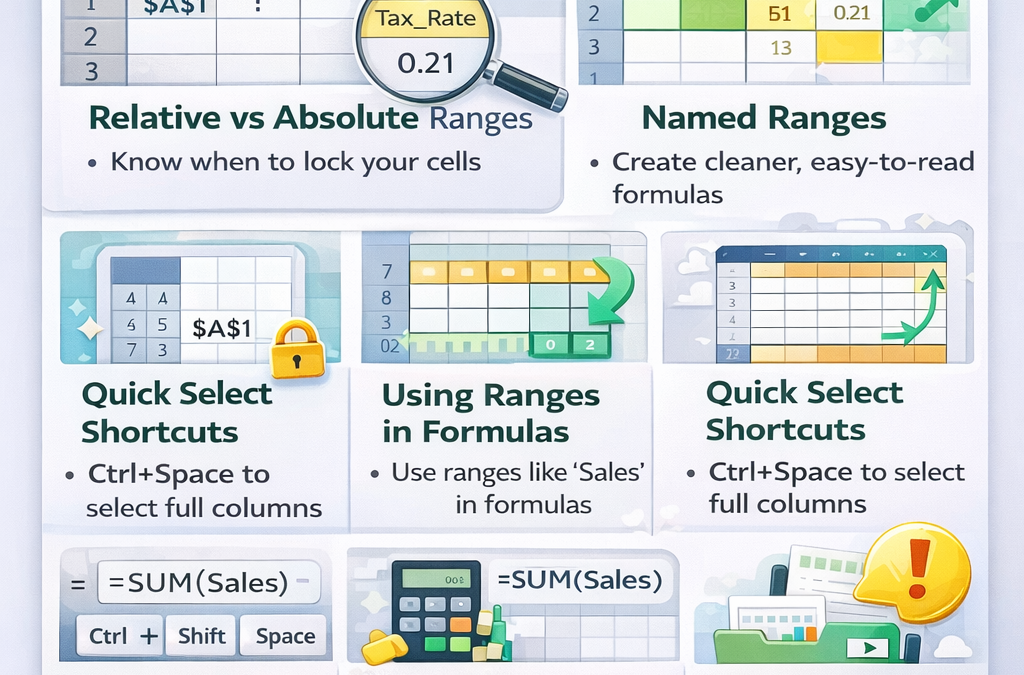
$A$1
Locks both row and column.
Mixed reference (locks one part)
$A1 locks column A only
A$1 locks row 1 only
Example:
If your tax rate is in E1, and prices are in column B:
=B2*$E$1 ✅ (correct when copied down)
2) The Most Useful Range Shortcuts (Speed Boost)
Select a full row: Shift + Space
Select a full column: Ctrl + Space
Select current data region: Ctrl + A
Jump to last used cell: Ctrl + End
Select to last used cell: Ctrl + Shift + End
Select to last filled cell: Ctrl + Shift + Arrow Keys
3) Named Ranges (Cleaner Formulas + Easier Work)
Named ranges turn ugly formulas into readable ones.
Instead of:
=SUM($B$2:$B$200)
You can name the range Sales and write:
=SUM(Sales)
How to create a named range
Select your cells (example B2:B200)
Click the Name Box (left of formula bar)
Type a name like Sales and press Enter
Naming rules:
No spaces (use Sales_2026)
Must start with a letter or underscore
Avoid names like SUM or IF
4) Dynamic Ranges (Auto-Expand When You Add Data)
Static ranges break dashboards over time. Dynamic ranges keep things “future-proof”.
Option A (Best for most people): Use Excel Tables
Select your data
Press Ctrl + T
Your range becomes a Table that auto-expands
Benefits:
Charts and PivotTables update easier
Formulas become structured references like:
=SUM(Table1[Sales])
Option B: Spilled ranges (Dynamic Array style)
If you use formulas that “spill” results, you can reference the whole spilled range using #.
Example:
If a formula in G2 spills results down, use:
=SUM(G2#)
This is extremely useful for modern Excel dashboards.
5) Range Operators (Simple but Powerful)
Excel has 3 operators that control range selection:
: (Colon) → range
A1:A10
, (Comma) → combine ranges
A1:A5, C1:C5
Space → intersection (advanced)
A:A 1:1 returns A1 (intersection of column A and row 1)
6) Using Ranges in Common Tasks
A) SUM / AVERAGE / COUNT
=SUM(C2:C50)
=AVERAGE(C2:C50)
=COUNT(C2:C50)
B) Lookup ranges
=XLOOKUP(E2, A2:A100, B2:B100)
Here A2:A100 is lookup range and B2:B100 is return range.
C) Drop-down list (Data Validation)
Use a range like:
=A2:A20
Even better: use a Named Range like:
=DepartmentList
D) Conditional formatting on a range
Apply rules to:
B2:B200
Example: highlight values above 100.
7) Common Range Mistakes (And Quick Fixes)
Mistake 1: Chart not updating after new data
✅ Fix: Convert data to a Table (Ctrl+T)
Mistake 2: Formula breaks when copied
✅ Fix: Use $ absolute references where needed
Mistake 3: Named range not working
✅ Fix: Check name rules (no spaces, not reserved words)
Mistake 4: Using full-column ranges in heavy files
Example: =SUM(A:A) can slow large workbooks
✅ Fix: limit range: A2:A50000 or use Tables
Best Practice (2026): Use Tables + Named Ranges Together
For clean, scalable Excel:
Use Tables for datasets
Use Named Ranges for key inputs (like tax rate, dates, settings)
Use spilled-range references (#) when working with dynamic outputs
This combination keeps your workbook fast, readable, and easy to maintain.
Download Ready-to-Use Excel Templates (Save Hours)
Want ready-made spreadsheets where ranges, formulas, and layouts are already done?
✅ Browse our template library: www.readyexcelfiles.com
Download, edit, and start instantly—no need to build sheets from scratch.
Nice