
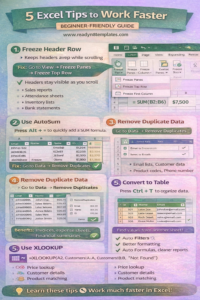
Excel Tips to Work Faster (Beginner-Friendly Guide)
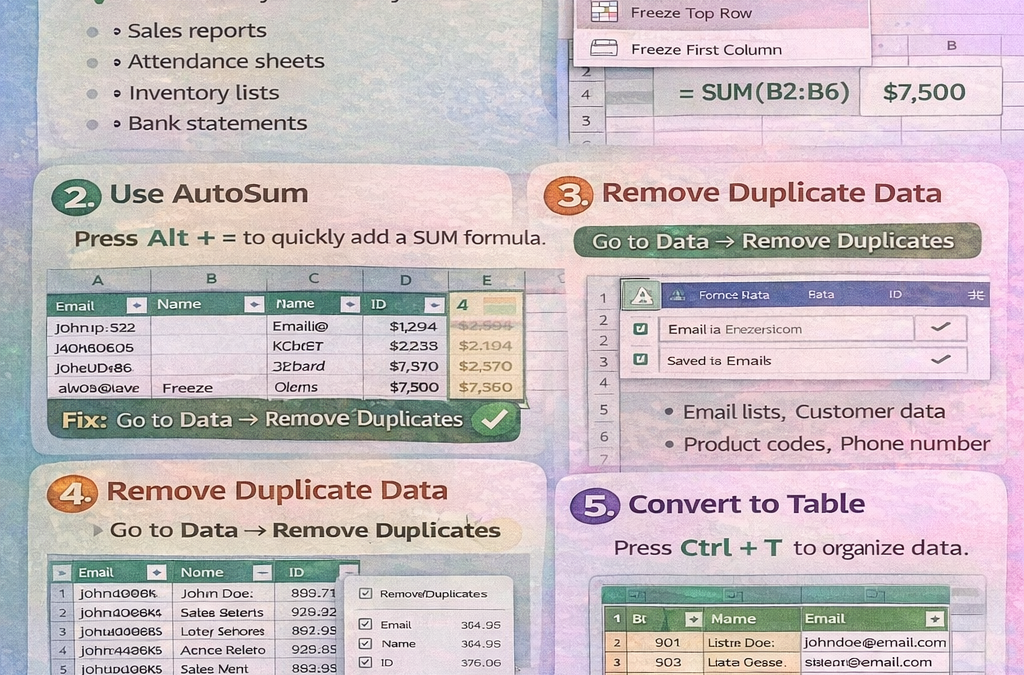
1) Freeze Your Header Row (So You Never Lose Column Titles)
When your sheet has many rows, you often scroll down and forget what each column means. Excel has a simple solution: Freeze Panes.
How to do it:
Go to View → Freeze Panes → Freeze Top Row
Now your header stays visible while scrolling. This is especially helpful for:
Sales reports
Attendance sheets
Inventory lists
Bank statements
2) Use AutoSum to Calculate Totals Instantly
Instead of typing formulas manually, you can use AutoSum to calculate totals in seconds.
How to do it:
Select the numbers
Click the empty cell where you want the total
Press Alt + =
Excel automatically adds the SUM formula and calculates totals instantly. Perfect for invoices, expense sheets, and financial summaries.
3) Remove Duplicate Data in One Click
Duplicate data is very common—especially when you collect leads, copy lists, or export data from websites. Excel can remove duplicates quickly.
How to do it:
Select your list
Go to Data → Remove Duplicates
Choose the column(s) to check
This is useful for:
Email lists
Customer data
Product codes
Phone number lists
4) Convert Your Data into an Excel Table (Best for Clean Reports)
Many beginners use plain data ranges. But turning your data into a Table makes Excel easier to use and more professional.
How to do it:
Select your data
Press Ctrl + T
Check “My table has headers” (if you have headers)
Benefits of using tables:
Auto filters and sorting
Better formatting instantly
Formulas auto-fill down the column
Cleaner dashboards and reports
5) Use XLOOKUP to Find Data Easily (Better Than VLOOKUP)
If you search values from another sheet (like finding a price, name, or category), XLOOKUP is a modern and powerful function.
Example Formula:
=XLOOKUP(A2, Customers!A:A, Customers!C:C, “Not Found”)
This means:
Find value in A2
Search inside Customers column A
Return matching value from Customers column C
If not found, show Not Found
XLOOKUP is great for:
Price lookup
Customer details
Product matching
ID-based searching