
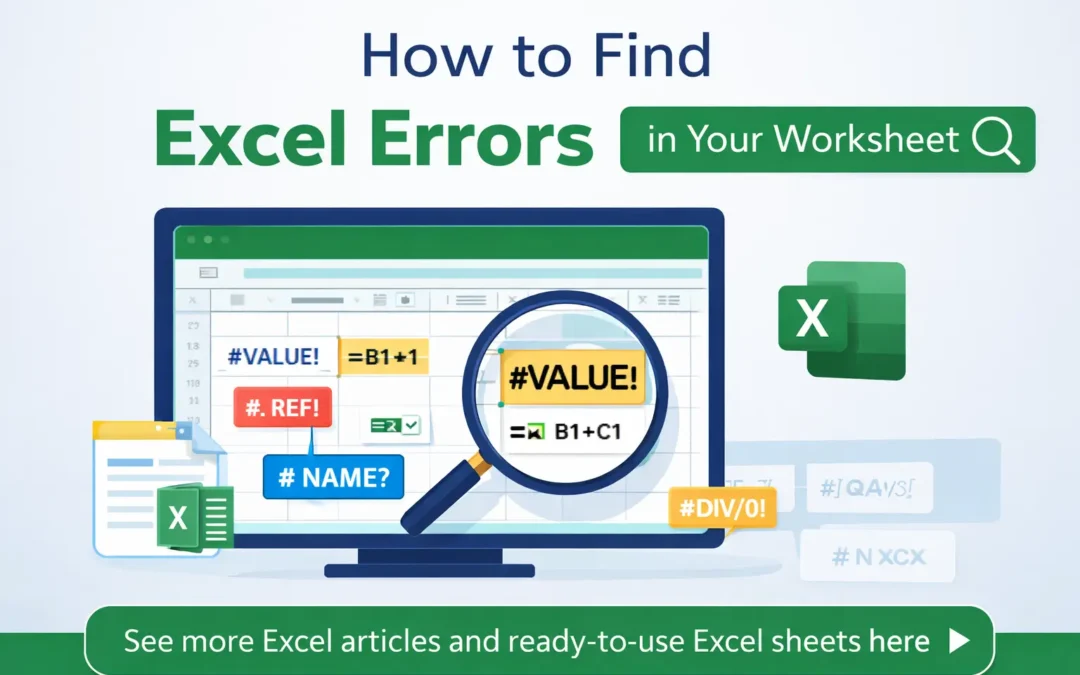
Excel is one of the most useful tools for office work, business reports, accounts, budgeting, and data management. But even a small mistake in a worksheet can create big problems. A wrong formula, missing cell reference, or typing error can change the final result and affect your whole work. That is why learning how to find Excel errors in your worksheet is very important.
The good news is that Microsoft Excel already has many built-in tools to help you quickly check and fix mistakes. If you use them properly, you can save time and keep your worksheet accurate.
1. Check Common Excel Error Messages
The first step is to look for common Excel error signs. Some of the most common Excel errors are:
- #VALUE! – wrong type of data used in a formula
- #REF! – invalid cell reference
- #DIV/0! – formula is dividing by zero
- #NAME? – Excel does not recognize a formula name
- #N/A – value is not available
- #NUM! – invalid number used in a calculation
These errors usually appear directly in the cell, so they are easy to notice. Once you see one, click the cell and check the formula bar.
2. Use Excel Error Checking Tool
Excel has a built-in Error Checking feature. This tool helps you find formula mistakes quickly.
To use it:
- Go to the Formulas tab
- Click Error Checking
- Excel will show the problem and suggest possible fixes
This is one of the fastest ways to find worksheet errors, especially in large files.
3. Trace Precedents and Dependents
Sometimes the error is not in the selected cell. It may come from another linked cell. In that case, use:
- Trace Precedents – shows which cells affect the current formula
- Trace Dependents – shows which cells use the result of the selected cell
You can find both options in the Formulas tab. These tools are very helpful when working with complex Excel worksheets.
4. Review Formula Carefully
Many Excel worksheet errors happen because of simple formula mistakes. For example:
- Missing brackets
- Wrong cell reference
- Wrong formula name
- Extra space
- Typing number as text
Double-check your formula and compare it with the cells you want to calculate. Even one small mistake can cause the wrong result.
5. Use IFERROR for Cleaner Results
If you want to make your worksheet look cleaner, you can use the IFERROR function. It helps hide error messages and show a custom result instead.
Example:=IFERROR(A1/B1,"Check Data")
If the formula creates an error, Excel will show Check Data instead. This is useful for dashboards, reports, and professional Excel templates.
6. Use Conditional Formatting to Highlight Problems
Conditional Formatting can help you spot unusual values, duplicates, blanks, or numbers outside your expected range. This is a smart way to find hidden worksheet issues that may not show an official error message.
7. Check Blank Cells and Data Format
Sometimes Excel formulas fail because cells are empty or data is stored in the wrong format. For example, a date saved as text can break a formula. Always check:
- Blank cells
- Number format
- Date format
- Text instead of numbers
Correct formatting can solve many Excel problems quickly.
Explore more Excel articles and downloadable ready-to-use sheets here.
1) 2000+ Ready Excel Files (.XLS) – Editable Excel
2) 3500+ Editable Professional Excel Templates
3) 10 Excel Tips for Everyone to Work Faster and Smarter
Final Thoughts (source of This, Digital Product Files.com)
If you want accurate reports and clean spreadsheets, you must know how to find Excel errors in your worksheet. By using Excel Error Checking, reviewing formulas, tracing linked cells, and checking data format, you can find and fix mistakes faster. This improves your productivity and helps you create more professional Excel files.